 Firefox
 1 / 10
About Bullets Font
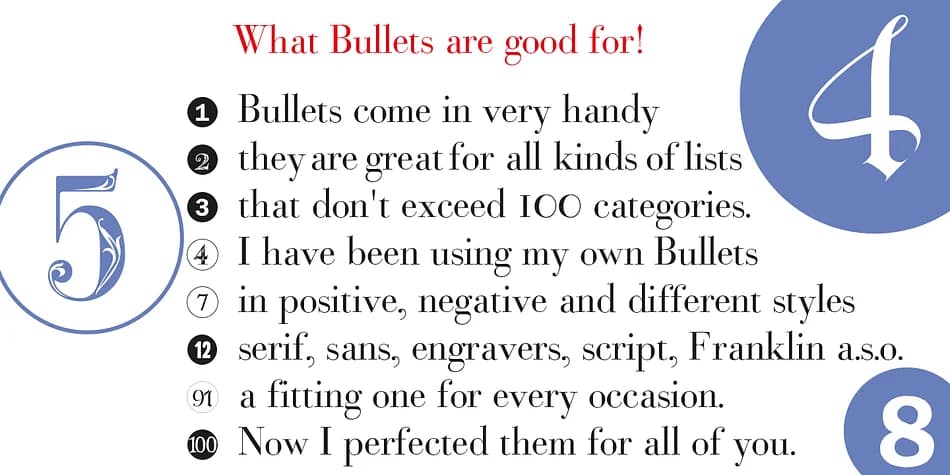
Bullets by Wiescher-Design offers a collection of numbered bullet styles built to handle the real work of listing and organizing without pretense. The font delivers clean, readable numerals from 1 through 100 across ten distinct design variations, each pairing positive and negative versions in serif, sans-serif, engraver, and script styles. Whether you need a compact, no-nonsense approach or something with visual personality, there's a Bullets variant ready to anchor your numbered layout.
The technical setup is straightforward: set your letterspacing to zero and you're ready to go. Single-digit numbers sit on the standard number keys, while two-digit combinations (01 through 99) compose from half-circle components accessed through lowercase letters. Special characters map the trickier pairs involving the number 1, and capital letters A through Z work as alphabetical bullets. This modular approach means you build exactly the numbering system your project needs without cluttering the typeface or hunting for workarounds.
Bullets suits designers and makers building numbered layouts: event seating cards with clear visual hierarchy, instructional posters with step-by-step graphics, product packaging that counts down features or benefits, or DIY craft guides and tutorial layouts. The ten design variations give you flexibility across different aesthetic directions, so you can match the font's personality to whatever you're building. Find Bullets on Creative Fabrica and download all the styles at once.
Style & Use Cases
- Overall Style
- Iconographic
- Use Case
- Icons, Accents
- Ideal For
- ornaments, bullets, and decorative flourishes
- Pairs With
- any text font
How to Install Bullets Font
Step-by-step instructions for every platform
- 1Download the Bullets font file (.ttf or .otf).
- 2Locate the downloaded file in your Downloads folder.
- 3Right-click the font file.
- 4Select "Install" to install for the current user, or "Install for all users" to make it available system-wide.
- 5Bullets is now available in Word, Photoshop, Illustrator, and all other apps.
More by Wiescher-Design
View all →
Browse fonts by theme
Curated collections →Saw a font in a picture? Identify any font from an image with our free Font Finder.
More Dingbats Fonts
Browse all →

What pairs well with Bullets Font?
Bullets Font is a versatile dingbats font that works for both headings and body text. Pair it with a contrasting sans-serif or serif font to add visual interest and a clear distinction between titles and body copy.



Bullets Font
Reviewed by the FontBoxDL team · Updated August 2026