 Firefox
 1 / 3
1 / 3Loading font…
About Statement Font
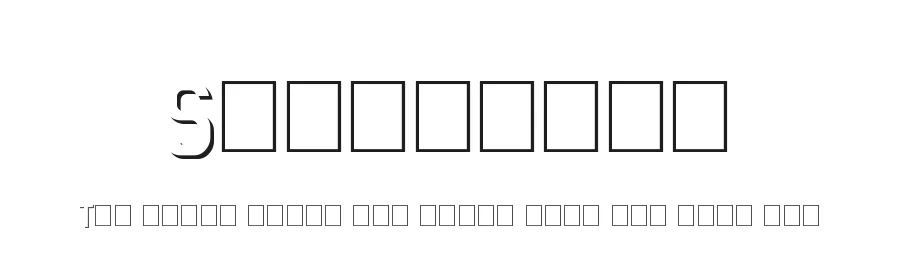
The three fonts available here are Sans Statement, Shadow Statement and Emboss Statement.
They can all be used on their own, however, another possible use of the Emboss variation is to enable to creation of a customised 'shadow' version that allows users to apply a different colours to the characters and shadow. Please see the image below for an example of how this might work.
This will require a little experimentation with the tracking and/or kerning, but it's worth it for the additional flexibility.
These fonts are all free to use for both personal and commercial projects. I'd love to see examples of any work you produce with these fonts, but that is not a condition of their use.
Please also take a moment to browse my other fonts:
http://www.dafont.com/steve-gardner.d5188
Any and all feedback is welcome.
Thanks and enjoy!
Style & Use Cases
- Overall Style
- Clean, Modern, Basic
- Use Case
- Body Text, UI
- Ideal For
- branding, interfaces, and modern layouts
- Pairs With
- a contrasting serif for headings
Similar Fonts
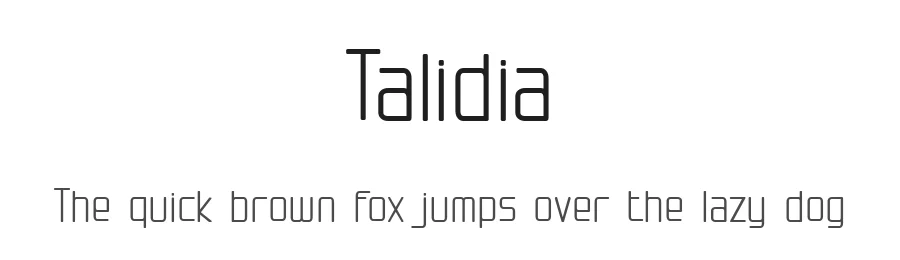
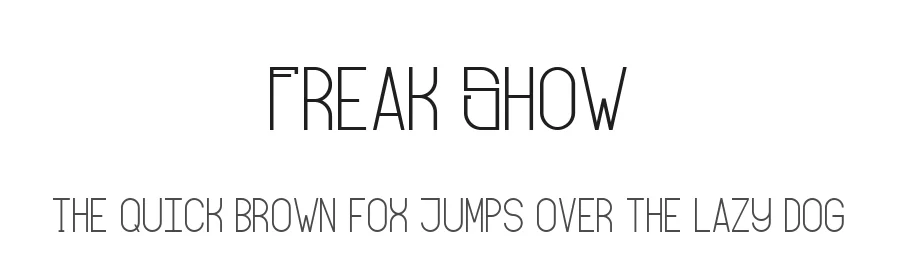
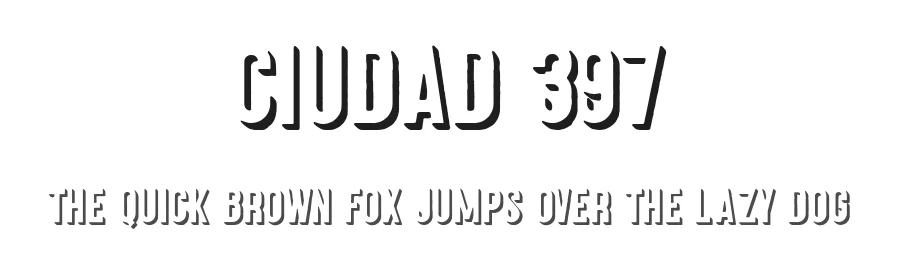
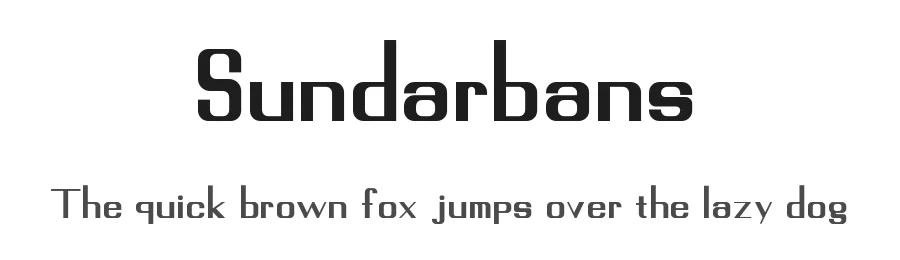
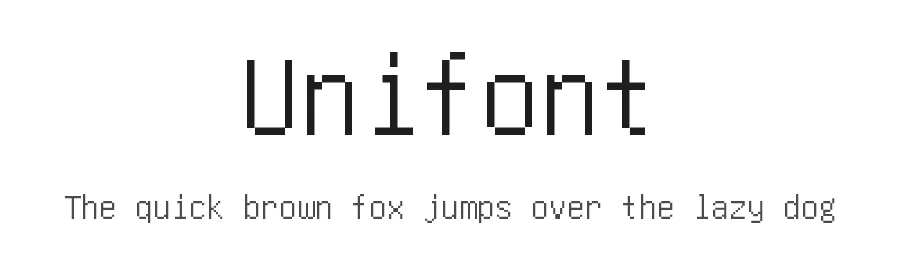
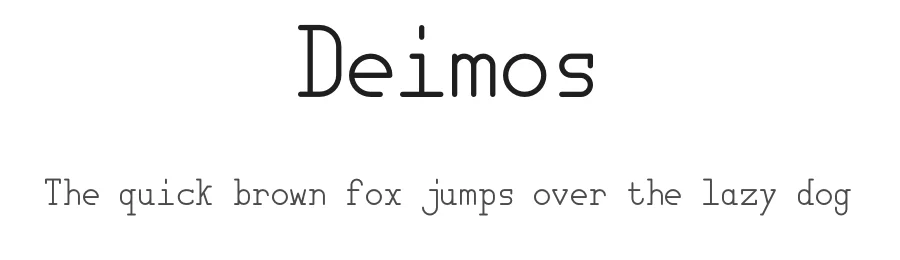
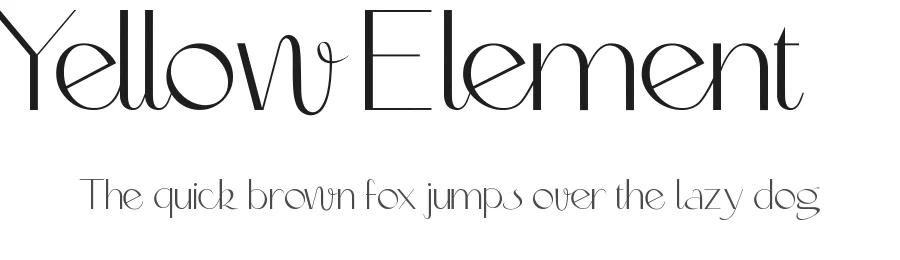
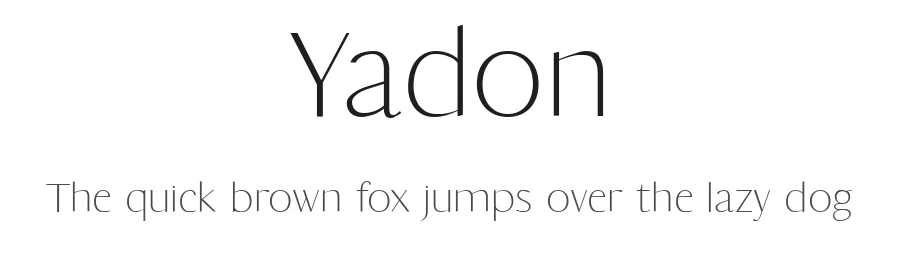
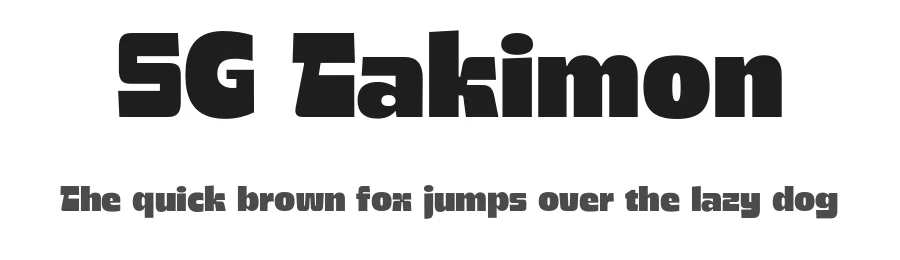
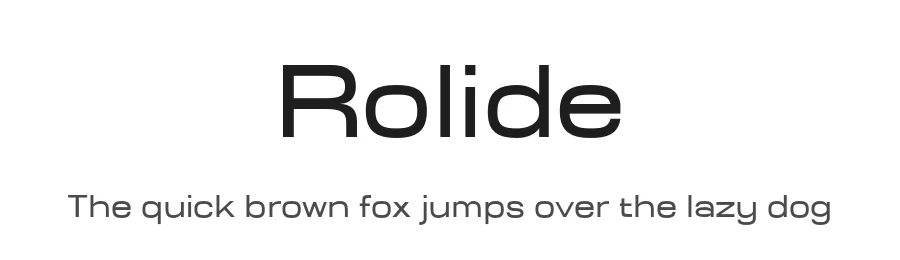
Fonts that look visually alike — matched by our Font Finder model.
Statement Specifications
| Font Family | Emboss Statement Regular |
| Style | Regular |
| Full Name | Emboss Statement Regular |
| Version | 1.0 |
| Weight | 400 (Regular) |
| Glyph Count | 32 glyphs |
| PostScript Name | EmbossStatementRegular-Regular |
| Format | TTF (TrueType) |
| File Size | 5.1 KB |
How to Install Statement Font
Step-by-step instructions for every platform
- 1Download the Statement font file (.ttf or .otf).
- 2Locate the downloaded file in your Downloads folder.
- 3Right-click the font file.
- 4Select "Install" to install for the current user, or "Install for all users" to make it available system-wide.
- 5Statement is now available in Word, Photoshop, Illustrator, and all other apps.
More by Steve Gardner
View all →
Browse fonts by theme
Curated collections →Saw a font in a picture? Identify any font from an image with our free Font Finder.
More Sans Serif Fonts
Browse all →
What pairs well with Statement Font?
Statement Font is a versatile sans-serif font that works for both headings and body text. Pair it with a contrasting serif or slab serif font to add visual interest and a clear distinction between titles and body copy.
Premium Sans Serif Fonts
★ PremiumWant something with more weights, glyphs, and commercial polish? These premium sans serif fonts are worth a look.
Statement Font
Reviewed by the FontBoxDL team · Updated June 2026
License: 100% Free